Every GIS Map Has a Reference Coordinate System
Coordinates are useful only when the reference coordinate system is known. Think how you would answer the question “Where is (6,4) In the space below”:
The GIS maps, either in desktop software or online map browsers, all have a coordinate system defined. In desktop software like ArcGIS Pro, users can change the coordinate system referenced by a map; while in a Web map browser like the ArcGIS Online map browser and Google Maps, users cannot change the coordinate system.
GIS Data Save Coordinates and Information about the Reference System SEPARATELY
Now you are given two coordinate systems established for the space, the “black” coordinate system with the origin in the center of the space, and the “red” coordinate system with the origin on the lower left corner of the space. Does coordinates (6,4) identify the same location in the two coordinate systems?
The example above hopefully helps you understand why a given coordinates can be used to uniquely identify a location ONLY WHEN THE COORDINATE SYSTEM IT REFERENCES IS KNOWN.
In GIS data, coordinates (the numbers) and the name/ID and information about the reference coordinate system are saved SEPARATELY. The coordinate system metadata is saved in various forms depending on the data format. For example, shapefile (a vector data format) saves coordinate system metadata in a text file with the file extension .prj, some raster data formats save it in the auxiliary file (.aux, .aux.xml). Wondering what are the coordinate system metadata? Take a look at the examples below.

A .prj file and its contents as shown in WordPad.
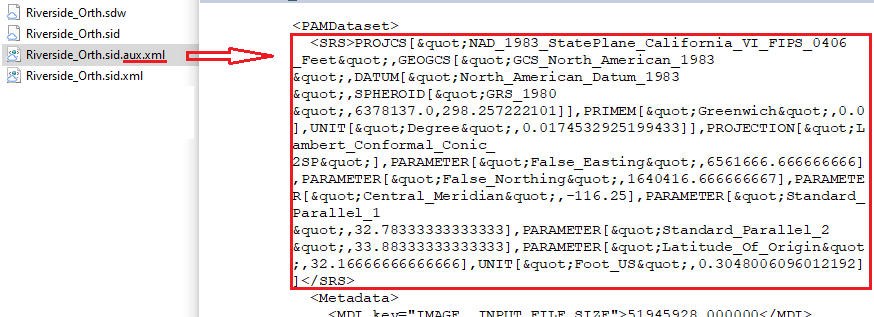
An aux.xml file and the coordinate system information saved in it.
As you can see, using the shapefile .prj file above as an example, map projection (Transverse_Mercator) and the parameters used in the projection (False_Easting, False_Northing, Central_Meridian, Scale_Factor, Latitude_or_Origin, Unit), and the geographic coordinate system the coordinates are projected from (GCS_North_American_1927) are saved in the coordinate system metadata. GIS software needs these metadata to display coordinates at the right locations and to convert the coordinates to a different coordinate system when needed.
The Map and the Data May Have Different Coordinate Systems
A map can reference only one coordinate system. Assume the map you are using in some GIS software references coordinate system “black” below and you are looking at the area around location (6,4), where the blue point is in the space. Now you are adding a street data layer that references coordinate system “red”. In coordinate system “red”, the coordinates for the blue point are (27,17), and that is the coordinates saved in the street data layer for the blue point.
If nothing is done, (27,17) get read from the street data layer and placed where (27,17) is in coordinate system “black“, because that is the coordinate system referenced by the map. As you can see, (27,17) in coordinate system “black” is NOT where the blue point is. As a result, the streets for the area around the blue point get placed somewhere else. 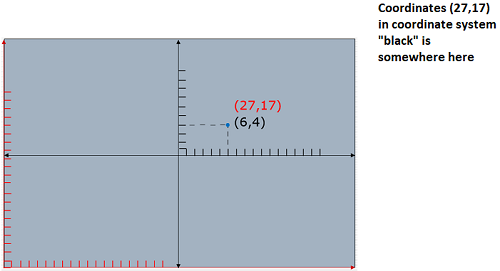
To correctly place the streets, the coordinates that reference coordinate system “red” (27,17) have to be converted to the coordinates that reference coordinate system “black” (6,4) when the street data layer is added to the map.
Bringing together data and map that reference different coordinate systems
In a GIS environment, you can correctly display data referencing a different coordinate system by:
- You the user use a tool to perform the conversion. The tool will read the street data layer that reference coordinate system “red” as the input and creates a new street data layer that references coordinate system “black”. You then add the new street data layer to your map. In ArcGIS desktop software, this is done using the tool “Project”.
- The software can do the conversion behind the scene as it displays the streets on the map. No new street data is created and the coordinates in the street data are NOT changed. In ArcGIS desktop software, this technique is called “projection on the fly“.
In the ArcGIS desktop environment, you can rely on projection-on-the-fly for map display purposes. However, if you run tools to perform geospatial analysis, you may need to project your data to a coordinate system that is appropriate for your study area and your purpose. Remember that projection-on-the-fly does not change the coordinates in the data. The tools in GIS software read coordinates from the data, not the map that displays the data. If your data is in the NAD 1983 geographic coordinate system, it will display correctly in a map that references the NAD 1983 UTM 15N coordinate system. However, in most cases the data need to be projected if you want to run tools on them because the tools assume planar coordinates as inputs.
When you capture coordinates via mouse clicks on a map, for example, when you are collecting real-world-coordinates (map coordinates) in georeferencing, you are using the coordinate system of the map, not coordinate system of the data displayed. Using the example above, the mouse clicks will collect coordinates reference NAD 1983 UTM 15N, not the NAD 1983 geographic coordinate system. Same applies when you use the measurement tool on the map.
